How to check WASSCE results on phone
Results day always creeps up faster than you expect. One moment you're still refreshing WhatsApp status updates about "results are out soon," and the next, everyone around you already has their grades and you're the only one still fumbling with your phone trying to figure out what to do. The good news is that checking your WASSCE result on your phone takes less than five minutes once you know the steps. No laptop, no cyber café, no drama.
Here's exactly how to do it.
Step 1: Get a valid result checker voucher
Before you can see anything on the WAEC portal, you need a Serial Number and PIN. Think of it as the "key" that unlocks your results page. You can't check without one, so this is the step to sort out first.
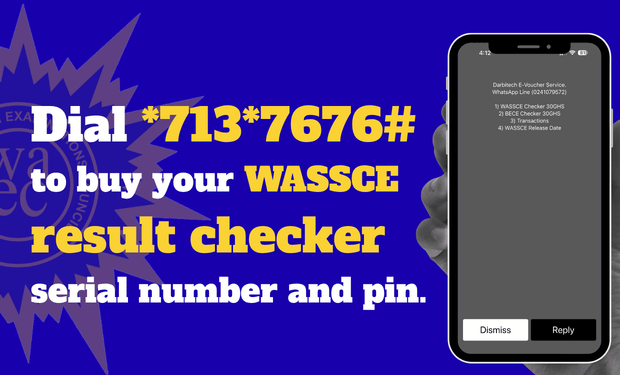
The quickest way to get your voucher is straight from your phone. Dial *713*7676#, follow the prompts, and pay with Mobile Money. Your Serial Number and PIN land in your SMS inbox within moments. No need to queue anywhere, and it works even without a strong data connection, which matters a lot on a busy results day when everyone in the country is trying to check at once.
If you'd rather do it online instead of dialling, checkerpin.com/checkers lets you buy the same voucher through your browser and get your details sent straight to your phone.
Either way, save that SMS the moment it arrives. Screenshot it, forward it to yourself on WhatsApp, do whatever you need to do, because losing that PIN means starting the whole process again.
Step 2: Head to the official WAEC portal
Open your phone's browser (Chrome, Safari, whatever you normally use) and go to ghana.waecdirect.org. This is the only official site for checking Ghanaian WASSCE results, so ignore any other link that lands in your inbox promising instant results. If it's not this address, be suspicious.
Step 3: Fill in your details
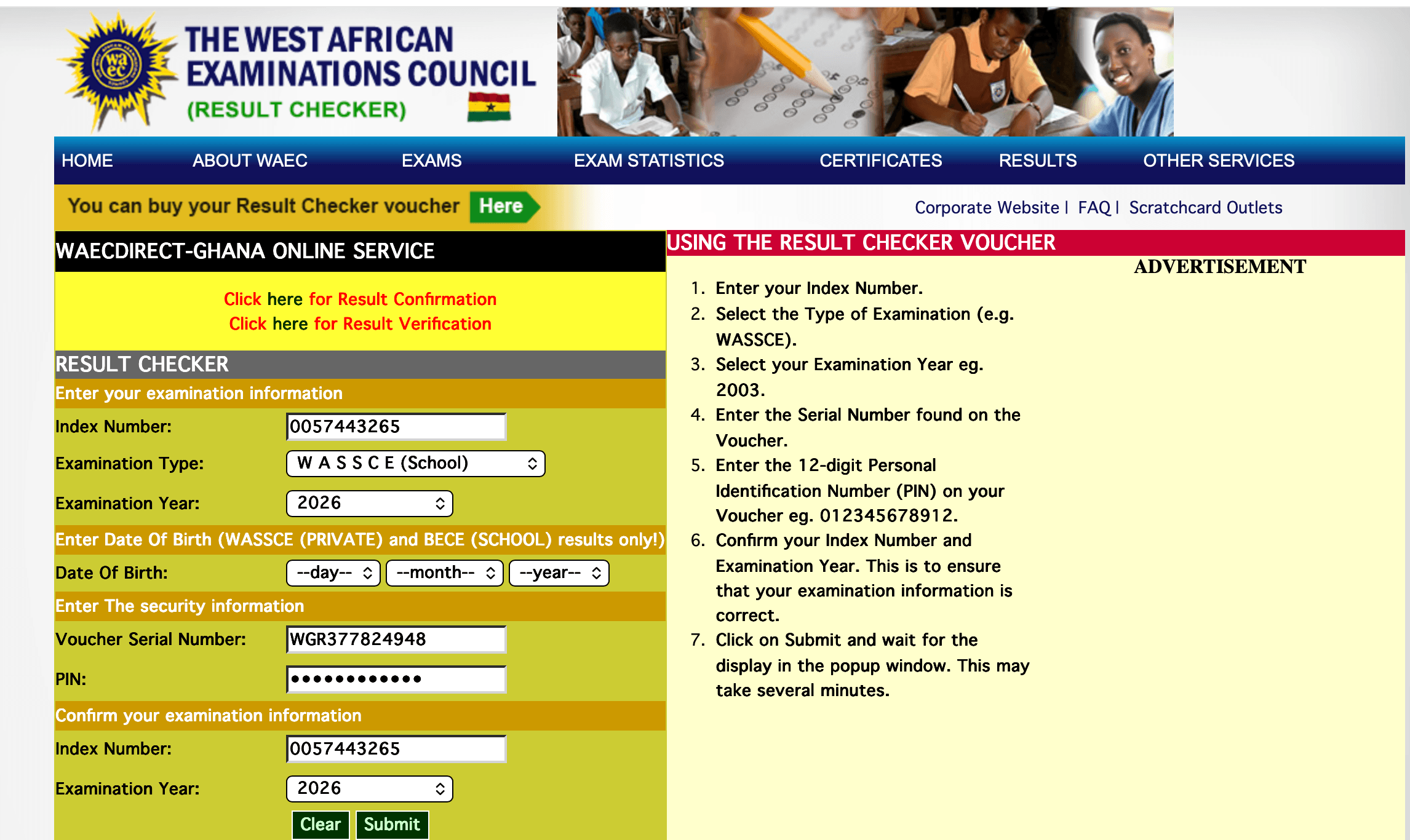
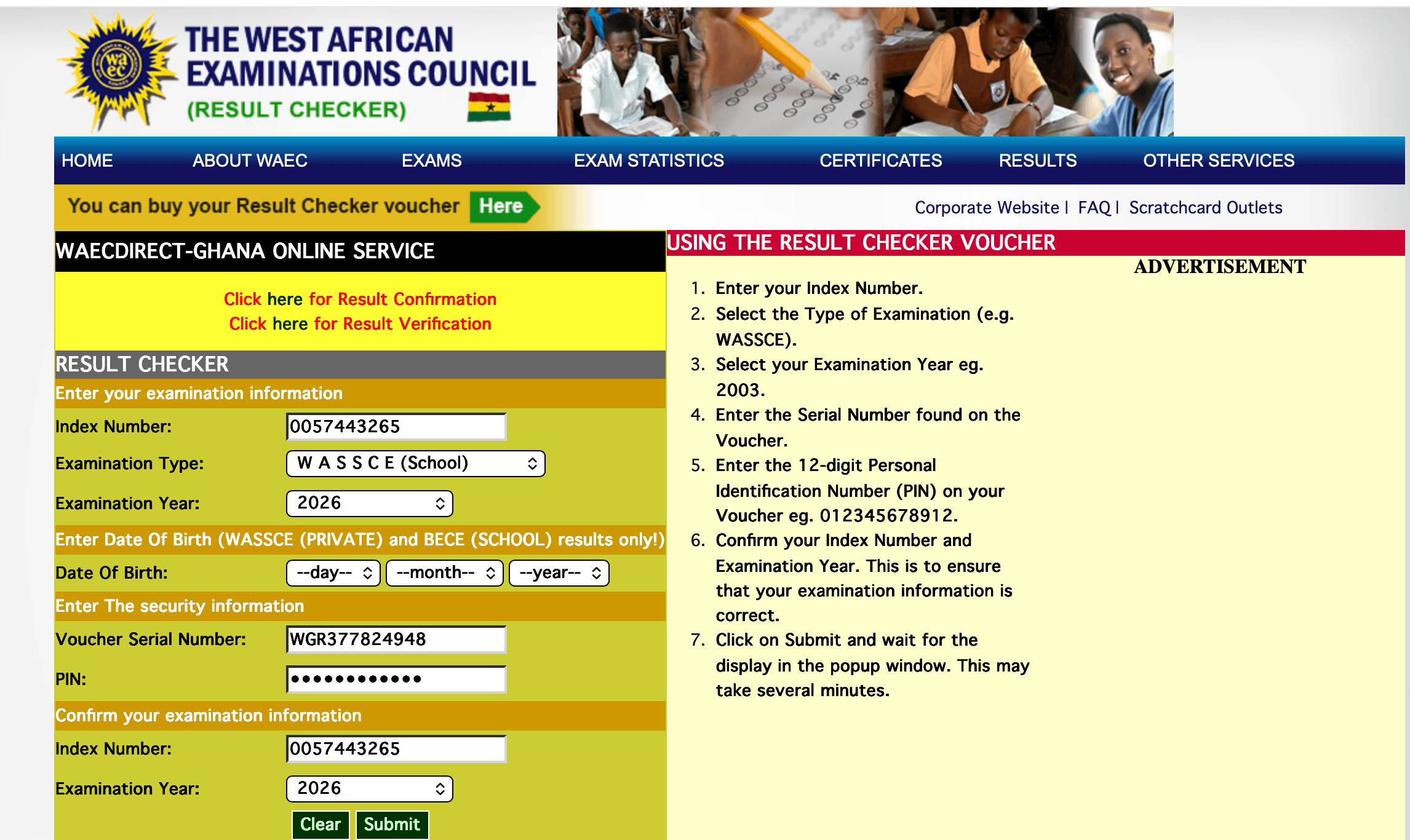
On the portal, you'll be asked for a few things: your Index Number, the Examination Type (select WASSCE, School or Private, depending on which you sat), the Examination Year, and the Serial Number and PIN from your voucher.
Double-check your index number before submitting. It's the most common place people make a typing mistake, and one wrong digit means the system won't find you.
Step 4: Submit and view your results
Once everything checks out, hit submit and your results will load right there on the screen. You can screenshot them, or if you're near a printer, save a proper printed copy. You'll need it later for school placement, scholarship applications, or admissions, so it's worth having more than just a photo on your phone.
A few things worth knowing
A serial number and pin can be used up to 3 times for only one index number, so if the page doesn't load properly on your first try, don't panic and don't assume the PIN is bad. Wait and check at dawn when fewer people are on the website.
Results day traffic is also real. WAEC's servers get hammered by thousands of people checking at the same time, so if the site feels slow in the first hour or two after results drop, that's normal. Grab some water, give it twenty minutes, and try again.
Errors like invalid serial number and pin means you haven't entered the 12 character serial number or pin correctly. If you can copy the serial number and pin directly from the sms and paste it on the website.
And that's really it. Buy your voucher, visit the portal, fill in your details, and your results are right there on the same phone you're reading this on.